TutorialsOctober 3, 202611 min read
How to check Full Disk Access on Mac, before an agent does
Apple says it will tighten the Mac permission that hands an app your mail, messages and browsing history. It named no version and no date, so here is the 20 minute audit you can run tonight.
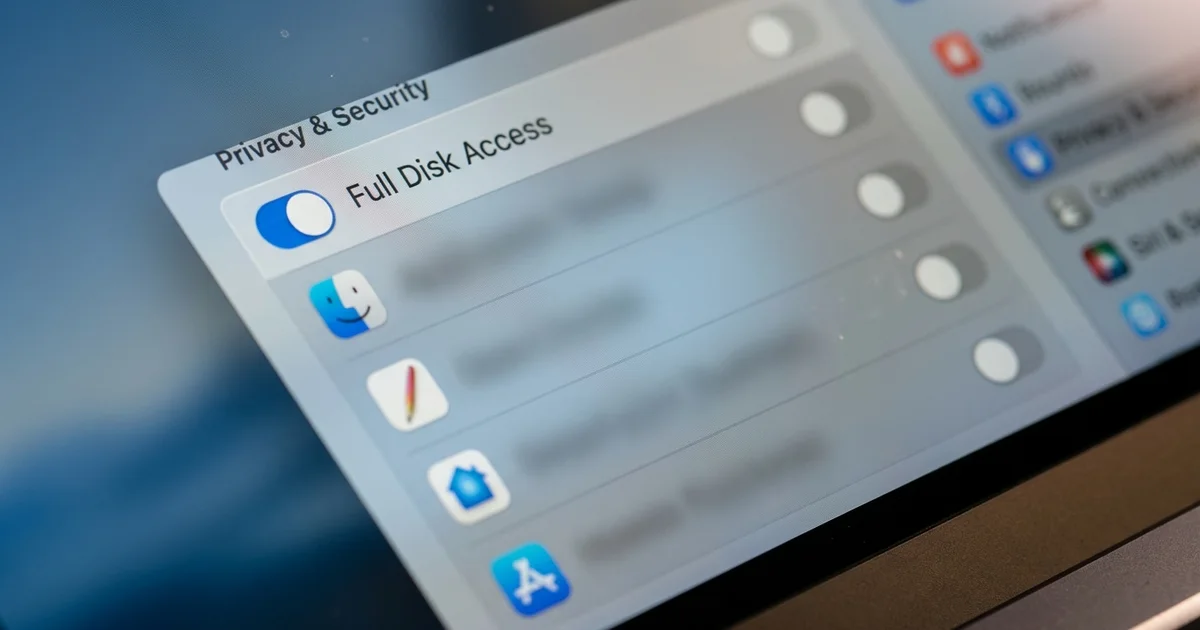
Full Disk Access on Mac is the single switch that lets an app read every file on your computer, including your mail, your messages and your Safari browsing history, and you can see which apps hold it in about 2 minutes by opening the Apple menu, then System Settings, then Privacy & Security, then Full Disk Access. Apple said on 2 October 2026 that it will add new controls to that switch because AI agents make the risk grow, and it named no macOS version, no release date and no new mechanism, so nothing on your Mac changes tonight unless you change it yourself.
The audit below takes about 20 minutes, costs nothing, and needs no software you don't already own. I ran every check in it on macOS 26.6 before writing, so the results you are about to read were measured on a real machine rather than assumed from documentation.
This matters more than it did a year ago because of what you have probably installed since then. An AI agent earns its keep by reading your actual files, so it asks for the widest permission macOS offers, and Full Disk Access is that permission. Apple has now said out loud that the combination worries it.
What did Apple announce about Full Disk Access on 2 October 2026?
Apple published a developer news post on 2 October 2026 titled Updates to Full Disk Access in macOS, saying it will add controls so that granting the permission takes what Apple calls very explicit user action. The post runs to 2 paragraphs, and those 2 paragraphs are the whole of Apple's public position so far.
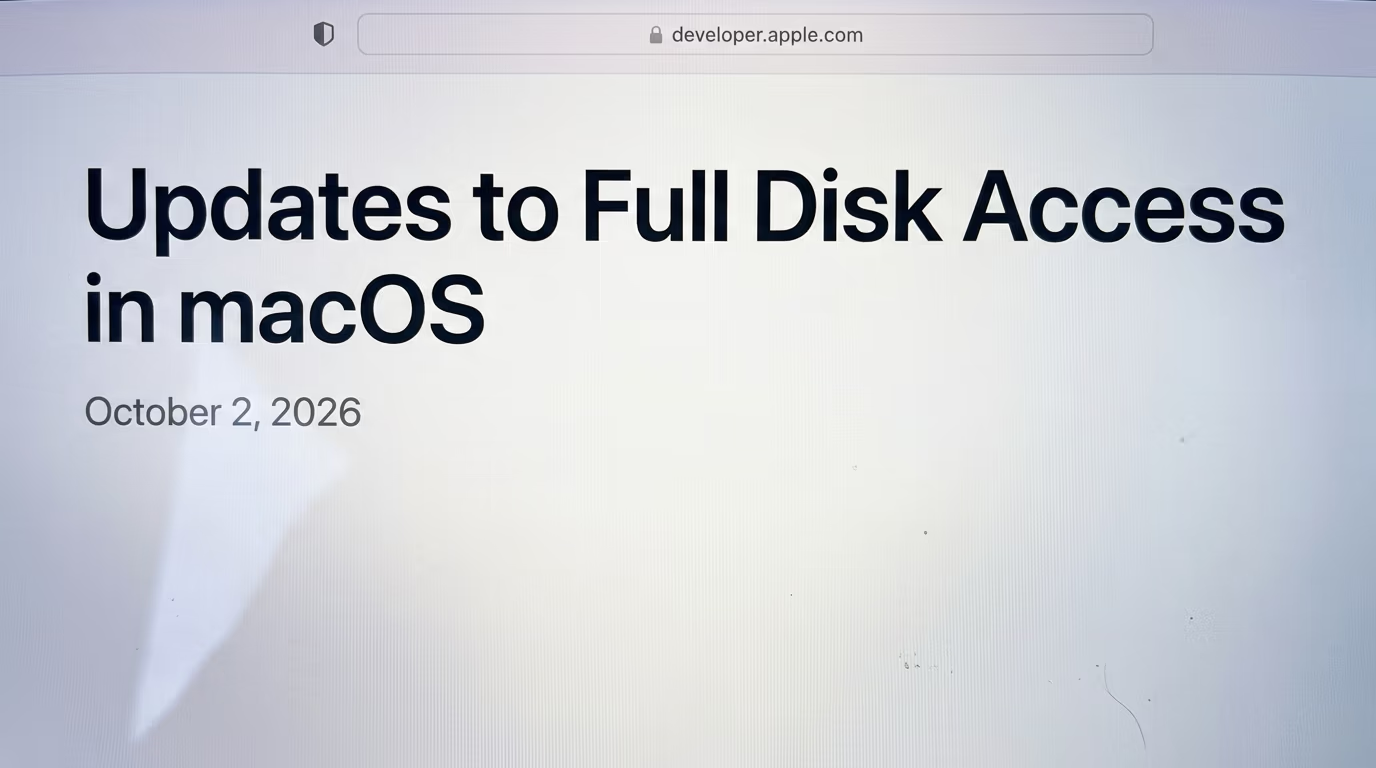
Apple wrote that some developers are using Full Disk Access in ways that could put users at risk, exposing "everything on their systems", and it listed what that covers as "files, mail, messages, and even browsing history". For a messaging app, Apple added, the same reach can expose the privacy of the people the user is talking to. Your own choice about one app decides what happens to every message somebody else sent you.
The sentence that turned the post into news sits at the end of it. "As AI agents become increasingly capable and autonomous, the risks associated with this level of access will grow substantially", Apple wrote. Nothing in the post describes how the risk is handled today, only that Apple intends to handle it differently.
The post leaves out everything you would need in order to plan around it. Apple named no macOS version, gave no release date, set no deadline for developers, and described no new interface or entitlement that an app could be built against. TechCrunch reported that Apple didn't respond when it asked which specific changes were coming. So this is a statement of intent, and the controls it promises aren't on your Mac today.
2 reported incidents sit behind the timing, and both need stating carefully. Jason Aten, writing for Inc, said that Meta's Muse agent read his private messages when he had never asked it to, and TechCrunch also pointed to a Wired report that a flaw in the ChatGPT Mac app could have let attackers reach sensitive data. We looked at the agent itself when it launched, in what Meta Muse costs and what it needs from you first.
Meta disputes that account, and its denial is specific. Andy Stone, Meta's VP of Communications, told TechCrunch that "You have to enable both Full Disk Access and the Messages connector for Muse to be able to read your Messages content". David Singleton, an executive at Meta Superintelligence Labs, described 3 separate permission steps a user has to pass before any of it happens. Nobody has independently confirmed either version of events, so treat it as a disputed claim and go and read your own settings instead.
What does Full Disk Access actually give an app on your Mac?
Full Disk Access lets an app read all files on your computer, and Apple's own help page spells out what that includes in words anyone can check. The permission covers "data from other apps (for example, Mail, Messages, Safari, and Home), data from Time Machine backups, and certain administrative settings for all users on this Mac".
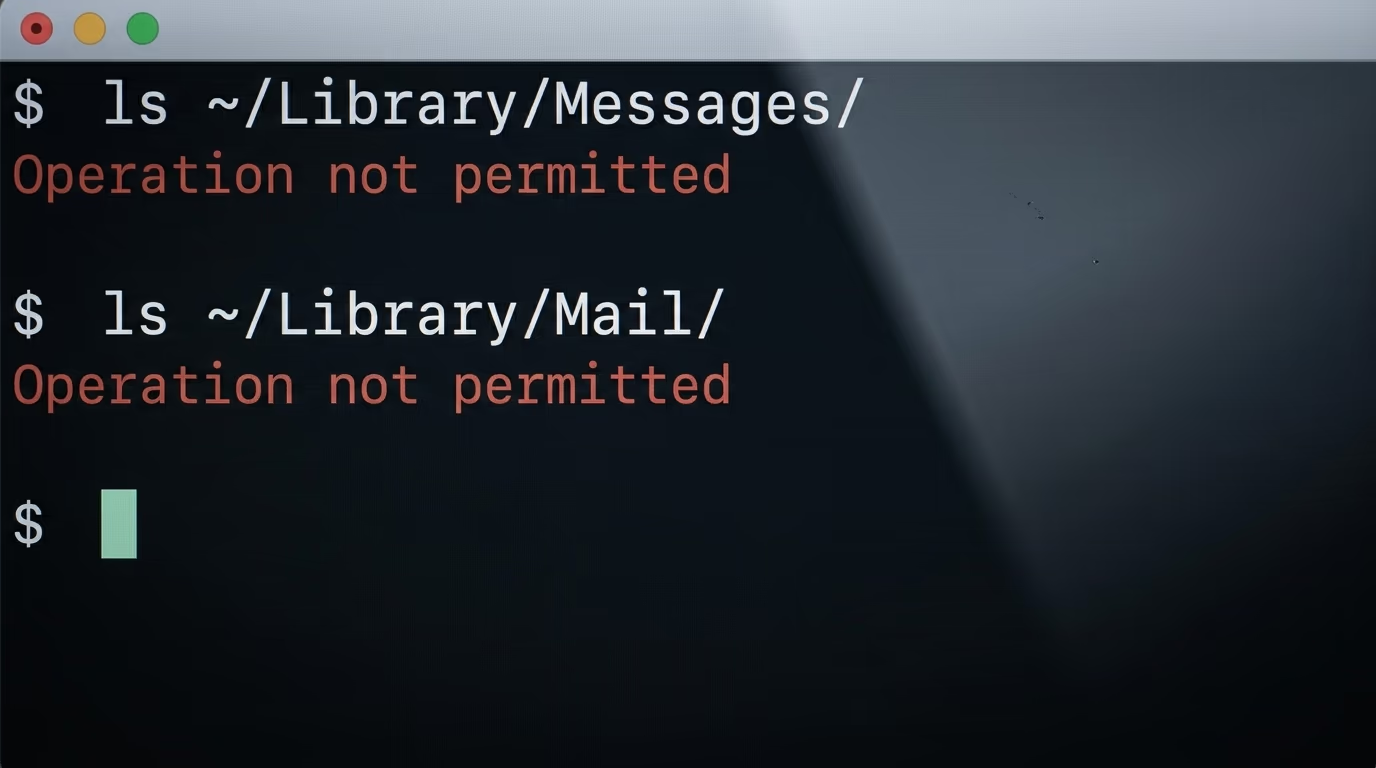
Those are not categories you have to take on trust, so I tested them rather than quoting them. In a terminal that had never been granted the permission, I asked for a listing of the Messages folder and then the Mail folder.
$ ls ~/Library/Messages/
ls: /Users/you/Library/Messages/: Operation not permitted

$ ls ~/Library/Mail/
ls: /Users/you/Library/Mail/: Operation not permitted
Both came back refused, with the same message each time. That refusal is the permission doing its job, and it's precisely what disappears the moment the switch goes on. You don't need to run this yourself, and the result is the same on any Mac where the app asking has not been granted the access.
Safari's browsing history gave the sharpest result of them all. The file sits where anyone can see it and its name shows up in a listing, yet reading it is refused in the same way. macOS blocks the read even though the ordinary file permissions on that file say its owner may read it, which means the rules you might know from other systems are not what is protecting this. A second system decides, and the switch in System Settings is how you talk to it.
This single switch moves an app from the files you deliberately hand it to the record of everything you have written, received and looked up. That is the whole of what it does, and it is why Apple is rebuilding the way you say yes to it.
How do you check which apps have Full Disk Access on your Mac?
You check Full Disk Access on a Mac by opening the Apple menu, choosing System Settings, clicking Privacy & Security in the sidebar, then clicking Full Disk Access, which lists every app that has been granted the permission with a switch beside each one. Apple documents that route on its own macOS help pages, and the whole walk takes about 3 minutes before you start reading.
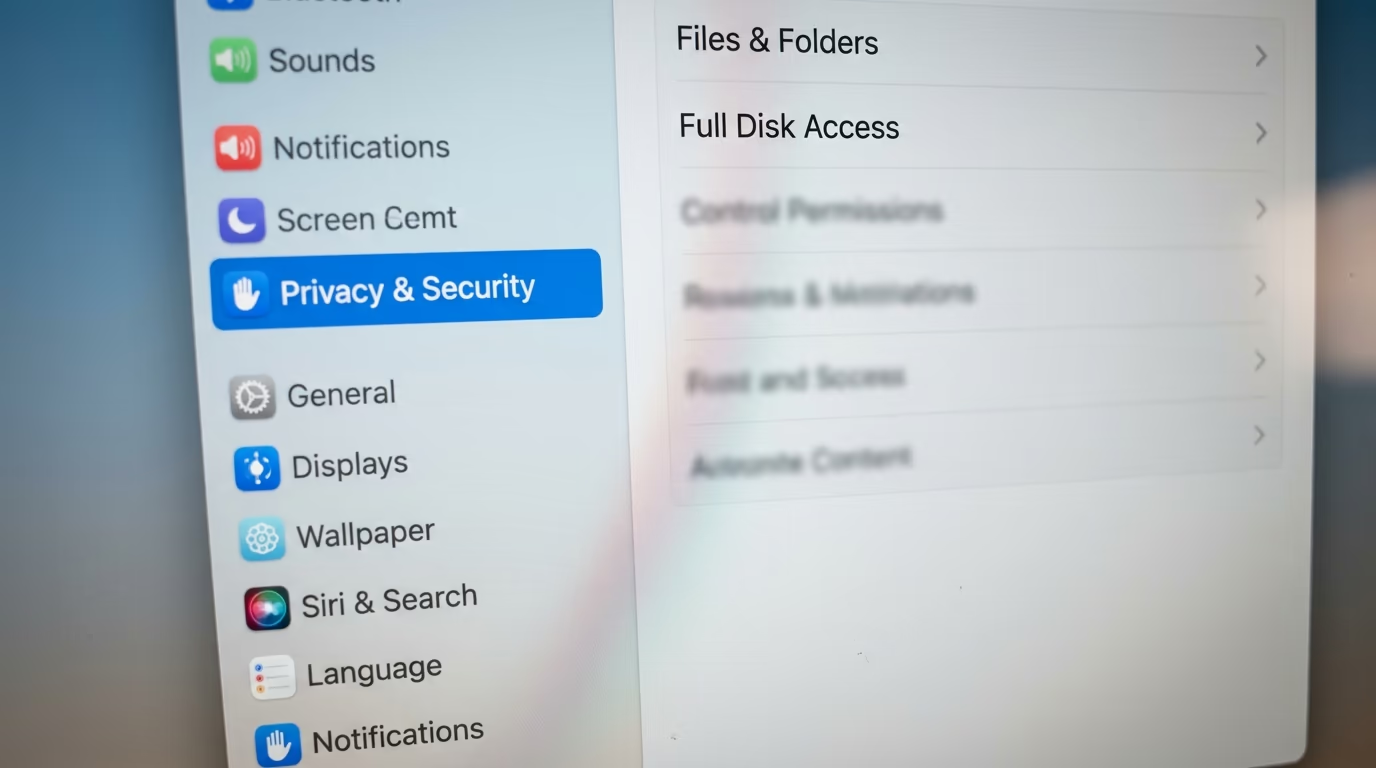
- Step 1 takes 1 minute. Open the Apple menu at the top left corner of your screen and choose System Settings. The window that opens has a long list running down its left side.
- Step 2 takes 1 minute. Scroll that left list until you find Privacy & Security, then click it. The list is long enough that scrolling is usually needed, so keep going if you don't see it.
- Step 3 takes 1 minute. In the pane that fills the right side, click Full Disk Access. It sits near an entry called Files & Folders, which is a different and much narrower permission.
- Step 4 takes 10 minutes. Read the list slowly. Each row names an app and carries a switch, and the switch is the whole story, because only the apps whose switch is on are reading anything.
Write that list down before you touch anything, on paper or in a note on another device. You will want to know the state you started from, and a list like this is harder to reconstruct afterwards than it looks.
You can't do this audit with a script, which is worth knowing before you start clicking. The file macOS keeps these decisions in refuses to open, and it refuses even for the account that owns it, which I confirmed on my own machine for the system file and for the one inside my home folder. Reading the screen with your eyes is the only route there is, which is also why the build further down hands the writing to an agent and keeps the reading with you.
Which apps should keep Full Disk Access, and which should lose it?
An app should keep Full Disk Access only when you can name the file it needs that it didn't create itself, which makes a backup app the clearest yes and an AI assistant the clearest no. Apple points at backup software as the reason the permission exists, writing in this same announcement that Full Disk Access largely sidesteps its other controls in order to let backup apps work properly on the Mac.
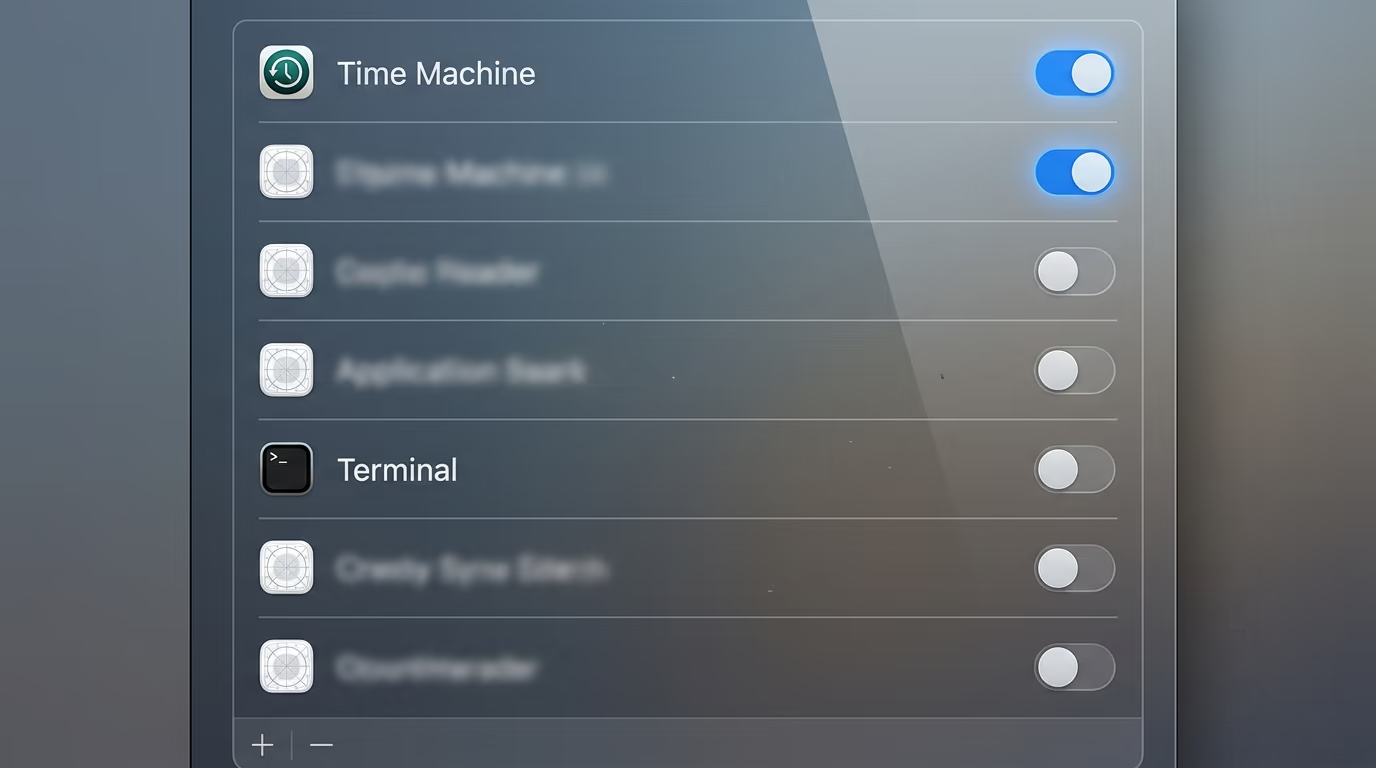
| What the app is | Why it would need every file | Keep it on? |
|---|---|---|
| A backup app such as Time Machine | It has to copy files it didn't create, including mail and messages | Yes, if you actually use it |
| Malware or antivirus scanning | It has to read files other apps own in order to scan them | Yes, if you chose to install it |
| An AI assistant or agent app | It wants context, and the whole disk is the easiest way to get it | No, give it one folder instead |
| A notes, photo or music app | Nothing it does for you needs your mail or your messages | No |
| Terminal or another command line app | Everything you run inside it inherits the same reach | No, grant it per job instead |
| An app you don't recognise | You can't answer the question at all | No, switch it off and see what complains |
The rule behind that table fits into one sentence. If you can't say out loud which file the app needs that it didn't make itself, switch it off and wait to see what complains.
Apps you don't recognise deserve the same treatment as apps you actively distrust. A name you can't place is a name you can't judge, and switching it off costs you nothing you can't undo in seconds. That habit is the same one we argued for in checking a package before you install it, and it works here for the same reason. Switching off an app that needed the permission costs you one alert, while leaving it on for an app that never needed it costs you everything in Apple's own list.
Why does Terminal matter more than any other entry on the list?
Terminal is 1 row on the Full Disk Access list and it is the row that decides the most, because the permission belongs to the app rather than to the command, so whatever you launch inside Terminal reads with Terminal's reach. Switch that single row on and you have answered the question for every tool you will ever start there, and not only for the one you had in mind when you did it.
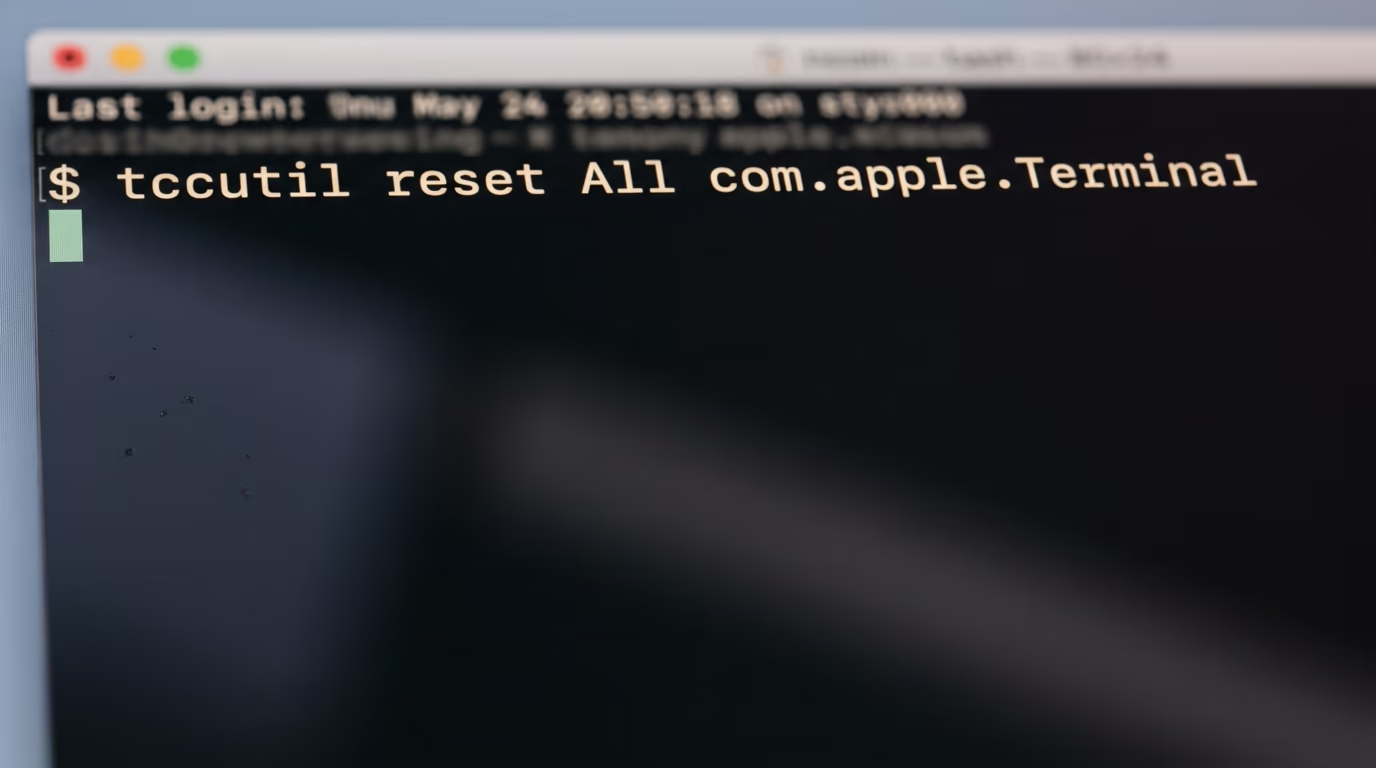
A coding agent usually runs inside a terminal, so it inherits whatever that terminal was given long ago, and it never had to ask you for anything at all. If you granted Terminal this permission years back for a backup script or some troubleshooting, it's still granted today, and the agent you installed last month is standing on it.
Apple's own manual page for the tccutil command prints a line that clears the stored decisions for Terminal, and the line below is the example Apple writes itself. That the example names Terminal rather than any command is the clearest sign of where these decisions are recorded. You type it once, in the Terminal window, and nothing is installed.
tccutil reset All com.apple.TerminalAfter that line runs, Terminal will ask you again the next time a tool reaches for something protected, which is exactly what you want to happen. Be aware that it clears every permission decision stored for Terminal and not this one alone, so prompts about the microphone or the camera may come back as well. That is a fair trade for knowing what you have agreed to.
If a terminal isn't something you ever open, you don't need that line at all. The switch in the settings window does the same job, and the result on disk is identical.
How do you let an AI agent work without giving it the whole disk?
You give an AI agent one folder and point it there, instead of saying yes to a permission that covers your mail and your messages. A coding agent needs somewhere to read and write, and somewhere is not the same thing as everywhere.
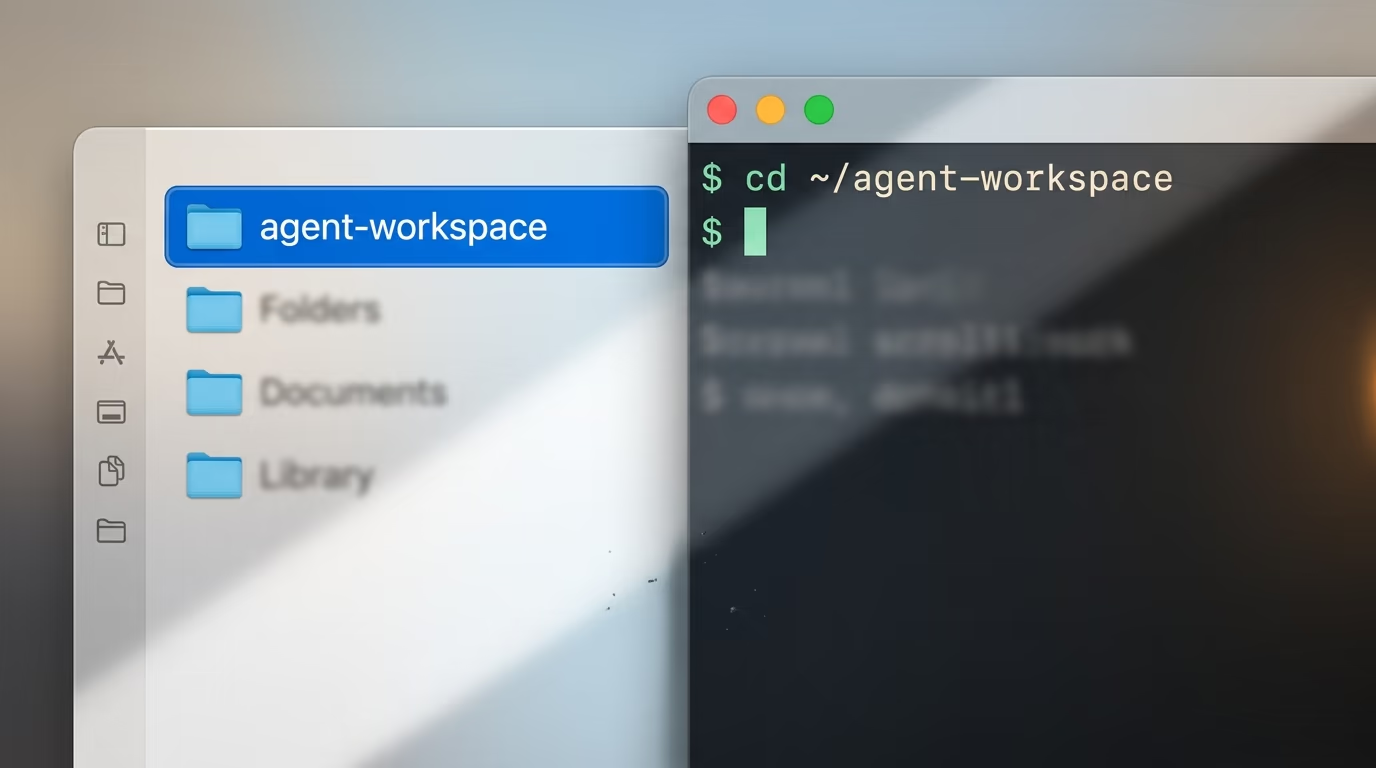
The build below takes about 10 minutes and works with any coding agent that can create files in a folder you name, including the ones we lined up in our ranking of AI agents for coding. Nothing in it costs anything beyond the agent you already pay for, and no step asks you for a permission you haven't read first.
Step 1 is 2 minutes of work. Make a new folder inside your home folder and give it a name you will recognise in a month. Everything the agent does from here lives inside it, and nothing it writes goes anywhere else.
Step 2 is 5 minutes of work. Paste the prompt below into your agent and answer its questions as they arrive. It is written to stop at every step and wait for you, so you are never 3 steps behind it wondering what it just did.
I want a dated record of which apps on this Mac hold Full Disk Access.
You do the writing, I do the reading. Work through these steps in order and
stop at each one until I answer.

1. Make a folder called agent-workspace in my home folder and work only
   inside it for everything that follows. Do not read or write anything
   outside that folder.

2. Tell me in one short paragraph that you cannot read the macOS permission
   database yourself, that the file refuses to open even for the account that
   owns it, and that this is why I have to read the list off the screen for you.

3. Walk me to the screen one step at a time. The Apple menu, then System
   Settings, then Privacy & Security in the sidebar, then Full Disk Access.
   Wait until I tell you I can see the list.

4. Ask me to read you every row and whether its switch is on or off. Take them
   one at a time. Never guess or complete a name I have not said out loud.

5. Save what I told you as a plain text file named full-disk-access-2026-10-03.md
   inside agent-workspace, with the date at the top and one line for each app
   showing its name and its switch state.

6. For each app I said was switched on, ask me one question. Which file does
   this app need that it did not create itself? If I cannot answer, write
   no reason given beside that app.

7. Print the list of every app marked no reason given, and tell me to switch
   those off now while the settings window is still open.

8. If a file like this already exists in agent-workspace from an earlier run,
   compare the two and tell me which apps were added, which were removed and
   which changed state since that date.

9. Never ask me to grant you Full Disk Access and never ask me to run a command
   that needs it. If you believe you need it, say so and stop.
When it finishes you should have a plain text file sitting in that folder, named with today's date, listing every app you read out and whether its switch was on or off. The agent will also have printed the apps you couldn't justify, and that shorter list is the one to act on while the settings window is still open in front of you.
Step 3 is 3 minutes of work. Switch off everything on that list, then quit and reopen each app you changed. Apple's instructions say nothing about restarting an app after a permission change, so do it yourself rather than assume the app noticed.
Run the same prompt again in a month and the agent compares the 2 files for you, which is the entire reason the date goes at the top. Software that acts on its own is why this permission is being rebuilt in the first place, and the week OpenAI paused frontier training made the same argument from the opposite direction.
What breaks when you switch Full Disk Access off?
Backup software and malware scanners are what genuinely break when you switch Full Disk Access off, and they tend to break loudly rather than quietly. A backup app that can no longer read your mail will stop and say so, usually with an alert naming the backup and a button that sends you straight back to the settings window.
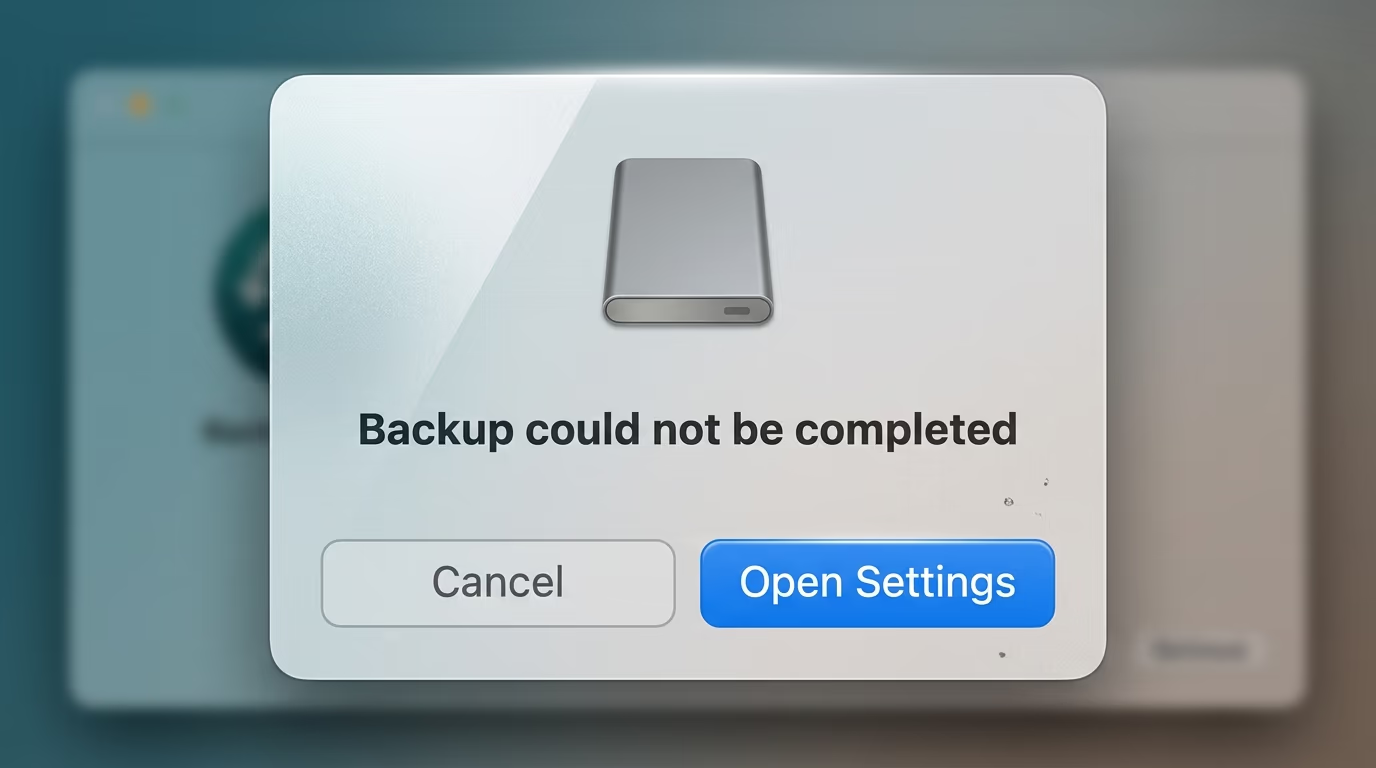
The quiet failures are the ones worth watching for. An app that syncs a folder in the background may simply stop syncing while continuing to look perfectly healthy, so if something you rely on goes still in the days after this audit, the permission you changed is the first thing to go back and check.
Inside a terminal the failure announces itself with the same message I showed earlier, the refusal saying that the operation is not permitted. If a tool that worked yesterday prints that today, you now know exactly what it is asking you for, and you can decide on purpose instead of clicking yes by reflex because something stopped working.
Putting the permission back takes under a minute and Apple documents the route. In the Full Disk Access list you click the add button marked with a plus, choose the app from the list that appears, then click Open. The switch for that app turns on, and you quit and reopen the app so the change is certain to take.
Decide each one on its own merits as it comes up. Switching everything back on because a single backup complained undoes the whole audit you just did, and the app that complained is usually the one app on your list that had a real answer to the question in the first place.
What we do not know yet about Apple's change
Apple has published 2 paragraphs about this change and nothing else, so almost everything a Mac owner would want to know about it is still unknown. The gaps are specific, and they are worth naming rather than filling in with guesses.
- No version. Apple didn't say which release of macOS will carry the new controls.
- No date. There's no deadline, no beta named and no window given, not even a season.
- No mechanism. Very explicit user action is the entire description, and it could mean a typed confirmation, a waiting period, or something nobody has guessed at yet.
- Nothing about whether the permissions apps already hold will survive the change or have to be granted again.
- No independent confirmation of the Muse account that sits behind the timing, which Meta disputes in detail.
Nothing in that list changes what you are able to do today. The controls Apple describes aren't shipping yet and may not ship for months, so the only thing standing between an agent and your messages this week is the switch you can go and look at yourself.
What to watch next is narrow and easy to check. Once Apple names a release, the new control becomes something anyone can test, and the question that follows immediately is whether the permissions already granted survive the upgrade or have to be given again from scratch. Until that happens, the audit above is the whole of the answer, and it is worth running again whenever you install anything that calls itself an agent. The same question is worth asking about everything on your phone, which is how we ranked the AI apps for iPhone by what each one can touch.
Questions people ask
How do I check Full Disk Access on my Mac?
Open the Apple menu, choose System Settings, click Privacy & Security in the sidebar, then click Full Disk Access. The pane lists every app that has been granted the permission with a switch beside each one, and only the apps whose switch is on are reading anything.
What does Full Disk Access on Mac actually let an app read?
Apple's own help page says it covers all files on your computer, including data from other apps such as Mail, Messages, Safari and Home, data from Time Machine backups, and certain administrative settings for all users on that Mac. Tested on a Mac without the permission granted, the Messages folder, the Mail folder and the Safari history file all refuse to open.
Is it safe to turn off Full Disk Access?
Turning it off is safe and reversible, and the apps that genuinely need it will tell you quickly. Backup software and malware scanners are the usual ones to complain, and you can grant the permission again in under a minute using the add button in the same settings pane.
Does my AI agent need Full Disk Access to work?
Almost never, because a coding agent needs a folder to read and write in rather than your whole disk. Make one folder, point the agent at it, and keep the permission switched off, which is the build described in this article.
When is Apple's Full Disk Access change coming to macOS?
Apple has not said when it arrives. The developer news post of 2 October 2026 names no macOS version, no release date and no deadline for developers, and TechCrunch reported that Apple did not respond when asked which specific changes were coming.
Can I see the Full Disk Access list with a script instead of clicking?
No, and this surprises people. The file macOS stores these decisions in refuses to open even for the account that owns it, which I confirmed on my own Mac for both the system file and the one inside the user's home folder, so reading the settings screen yourself is the only route.
Why does Terminal matter so much on the Full Disk Access list?
The permission belongs to the app rather than to the command, so anything launched inside Terminal reads with Terminal's reach, including a coding agent that never asked you for anything. Apple's manual page for tccutil gives a line that clears the stored decisions for Terminal, and the switch in System Settings does the same job.
Did Meta's Muse agent really read someone's private messages?
The account is disputed and nobody has confirmed it independently. Jason Aten, writing for Inc, said that Muse read his messages without being asked, while Meta says the Messages feature requires both Full Disk Access and the Messages connector to be switched on before any of it can happen.