TutorialsSeptember 26, 202613 min read
How to use the Gemini Live API tonight, browser first
Google put a talking avatar behind an Enterprise login on 24 September. The voice model underneath it is free to talk to tonight, and this is the whole path, browser first.
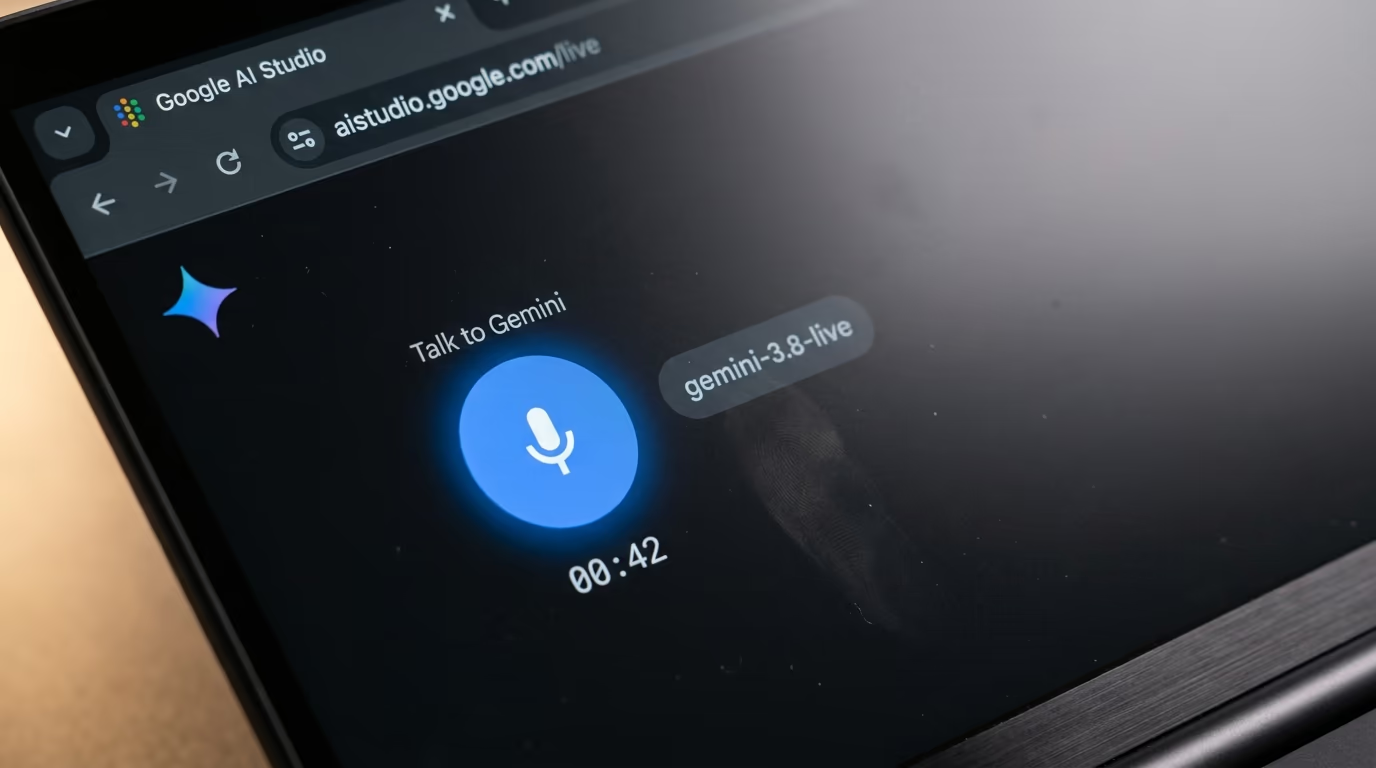
You can use the Gemini Live API tonight without writing a single line of code, and on Google's free tier the conversation costs nothing. Open Google AI Studio's live page in a browser, allow the microphone when it asks, and talk out loud to the model, because Google's own Live API documentation points at that page as the place to try it.
What Google announced this week is a different thing, and the gap between them is why this piece exists. Gemini 3.8 Live with Live Avatar puts an animated face on the voice, and Google's post says it is available in Gemini Enterprise, so nobody reading this is switching it on tonight. The voice underneath the avatar is something anyone can reach in about 2 minutes for free, and what follows is the whole path, from that first browser conversation to a working page of your own.
Below is the shopping list with real prices, the 4 steps in order with a time on each, the master prompt you paste into a coding agent so it writes the page for you, the 5 walls you will hit, and what a conversation really costs once you leave the free tier.
What is the Gemini Live API, and what does it do that a chatbot cannot?
The Gemini Live API is a connection that stays open while you speak, so Gemini hears your voice as it arrives and answers out loud, instead of waiting for you to finish typing and press send. A normal chat request is one question and one answer, closed at both ends. A live session behaves like a phone call, with sound flowing in both directions for as long as it lasts.
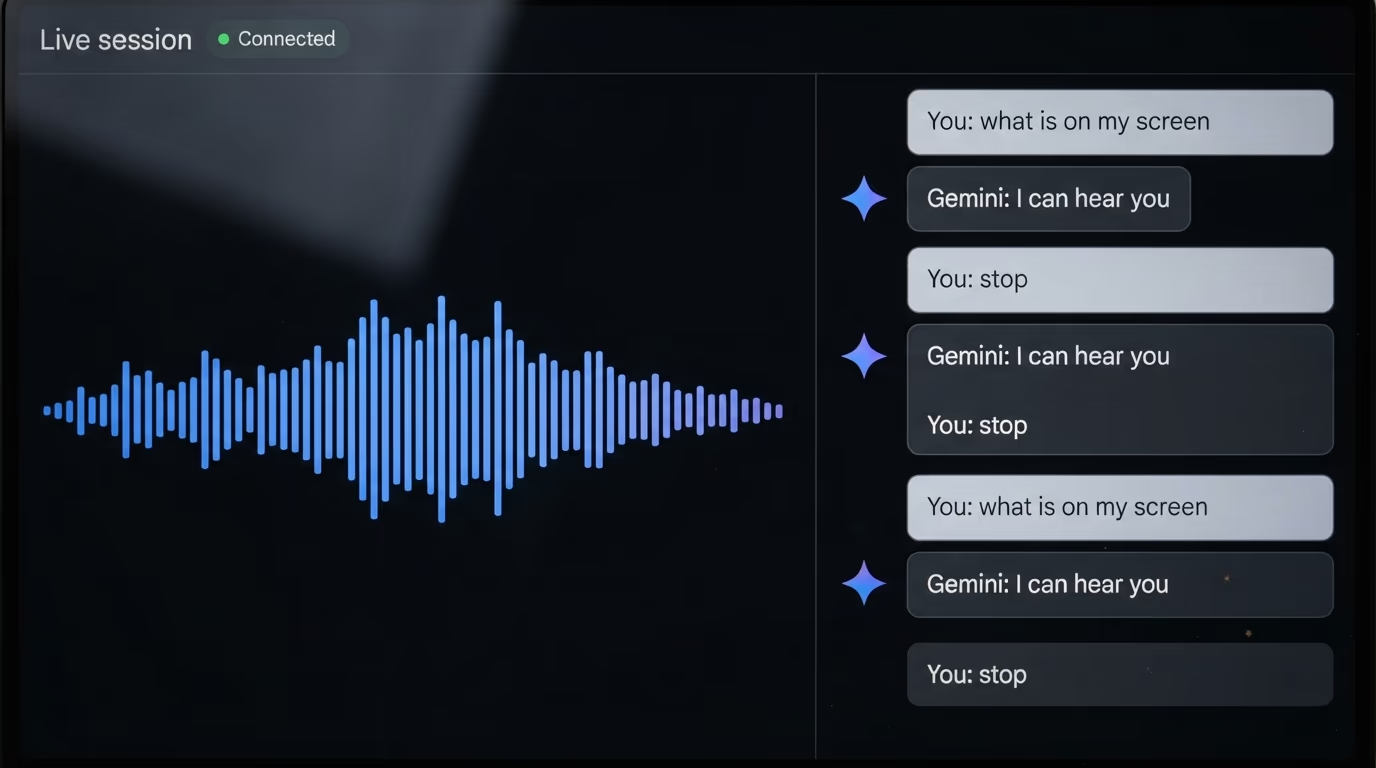
That changes 2 things a beginner feels within a minute of trying it. You can interrupt it, and Google's live guide says that when an interruption is detected the answer being generated is canceled and thrown away, which is why talking over it feels like talking over a person rather than queueing behind a monologue. You also hear the reply start while you are still settling back into your chair, because the sound streams out instead of arriving as one finished block.
Google's model list presents one standard live model for voice agents that answer without a thinking delay, and that is the one every step below uses. There is a second version beside it that stops to reason before replying, and a smaller preview model, and you can read the exact model name in the picture above and in line 3 of the prompt further down.
One quirk trips up almost everybody, and it is worth knowing before you build anything. The native audio models answer with sound only, so the words on screen as text come from switching on output audio transcription, a separate setting rather than something that arrives by default. Video works too, at a maximum of one frame every second, so the model sees a slideshow of your camera rather than smooth motion.
None of that is new this week. We went through the rates and the stopping points when the model first shipped, in what a minute of Gemini Live costs, and the news since then is the face rather than the voice.
What do you need to use the Gemini Live API tonight, and what does it cost?
You need a Google account and a browser with a working microphone, and nothing else at all for the first conversation, because Google's pricing page marks the free tier for the live model as Free of charge on both what goes in and what comes back. Everything after that is optional, and you can stop whenever you have what you came for.
- A Google account, free, almost certainly the one you already have
- Any current browser with a microphone, which nearly every laptop has in the lid
- Later, your own Gemini API keys, free to create inside Google AI Studio
- Later, a coding agent and the Node.js runtime it needs, both free
The free tier carries one condition that Google states in the same table and that almost nobody repeats out loud. On the free tier, the row named Used to improve our products says Yes, and on the paid tier the same row says No. Your voice and whatever you point a camera at are training material while you are not paying, so keep the first evening to things you would be comfortable saying in public, and switch on billing before you point it at a client's work.
The whole build below takes under an hour, and you reach something usable long before the end of it. The first conversation costs you 2 minutes and no setup, creating your own credentials takes another 3 and testing them another 5, while your own working page fills the rest of the hour with the coding agent doing the typing. Nothing here needs a paid plan, a waitlist or a card.
How do you talk to Gemini Live in a browser without writing any code?
Open Google AI Studio's live page, sign in with your Google account, and press the large microphone button, and you are in a voice conversation with the model inside 2 minutes. Google's own Live API overview links to that exact address as the place to try the Live API, so this is the front door rather than a workaround.
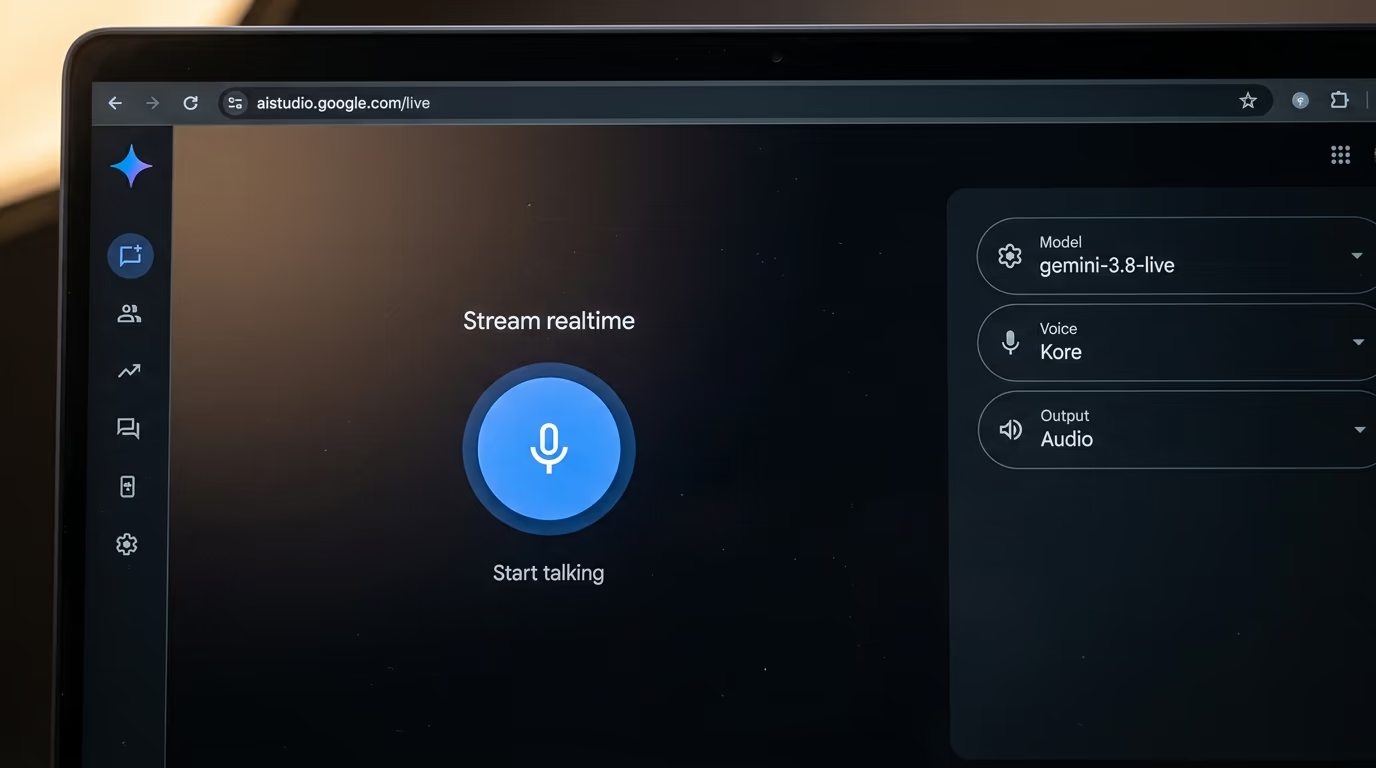
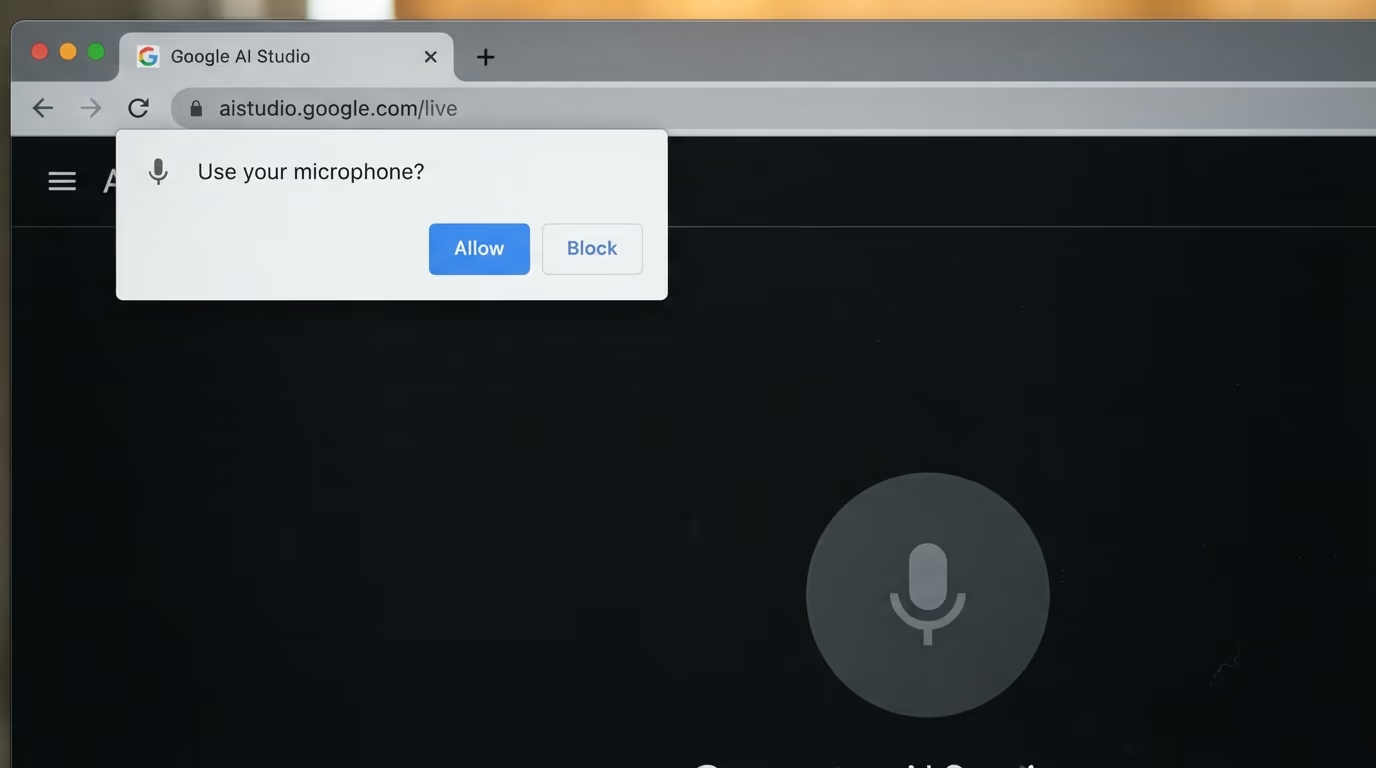
Step 1 takes 2 minutes and needs no setup at all. The page gives you a microphone control in the middle and a small column of settings on the right holding the model, the voice and the output. Leave all 3 on whatever they offer you and press the button. Your browser then asks for permission to use the microphone, with a small dialog naming the site and offering Allow and Block, and nothing happens until you press Allow.
What success looks like is a transcript of your own words appearing as you say them, and a voice answering out loud a beat after you stop. Try interrupting it halfway through an answer, because that is the moment the difference lands. It stops talking immediately, which is the most convincing demonstration that this is not a chatbot with a speech layer bolted on top.
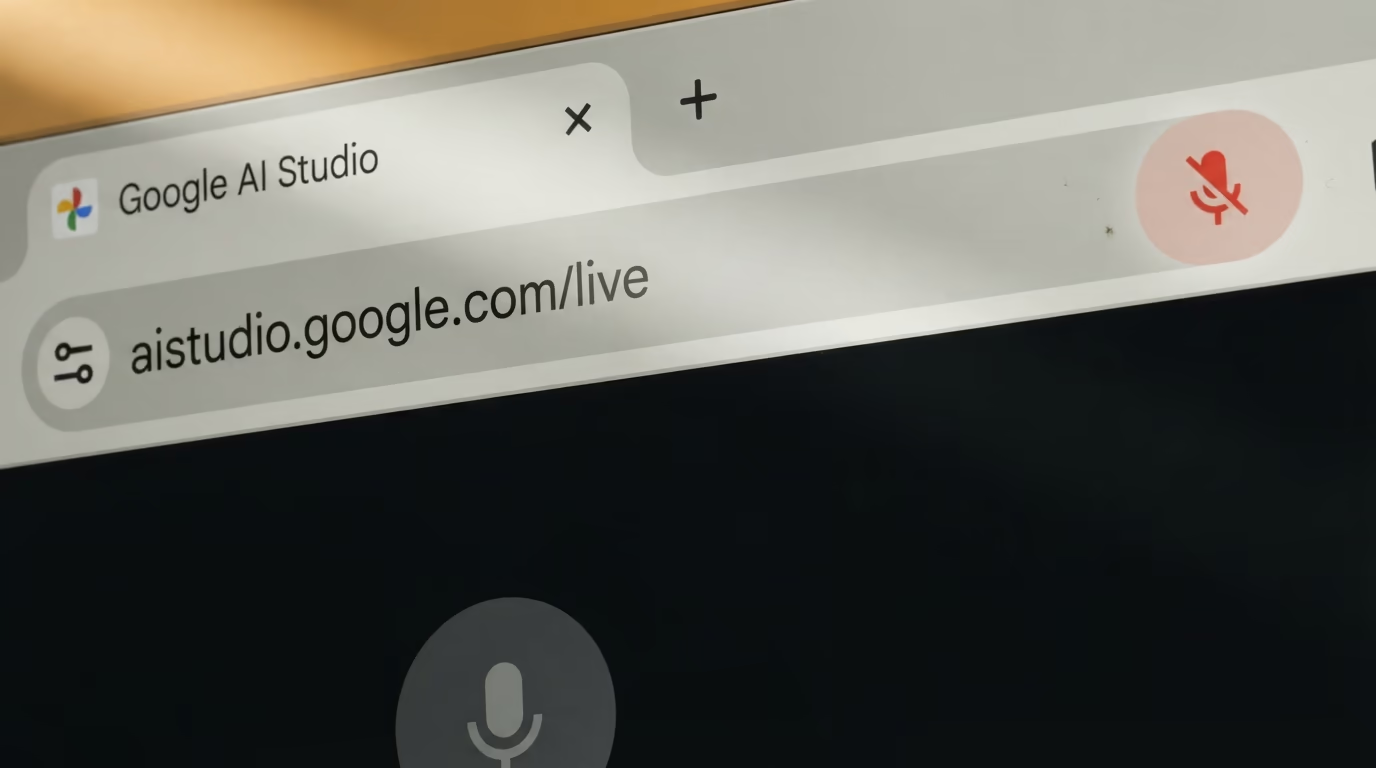
The wall at this step is almost always the microphone, and it looks like nothing happening at all. Look at the right end of your address bar for a small microphone icon with a line through it, which means the page was blocked, usually because Block was pressed by accident. Click that icon, allow the site, and reload the page. On a Mac you may also have to allow the browser itself, under System Settings, then Privacy and Security, then Microphone, and nothing on screen tells you so.
How do you get your Gemini API keys, and where do they go?
You create your own credentials on Google AI Studio's API keys page, where the blue button at the top right does the whole job in one press, exactly as shown in the picture below. Step 2 takes about 3 minutes including your first read of the terms. Google's documentation says each one is attached to a Google Cloud project and that new users get a default project made for them, so there is no console to learn first.
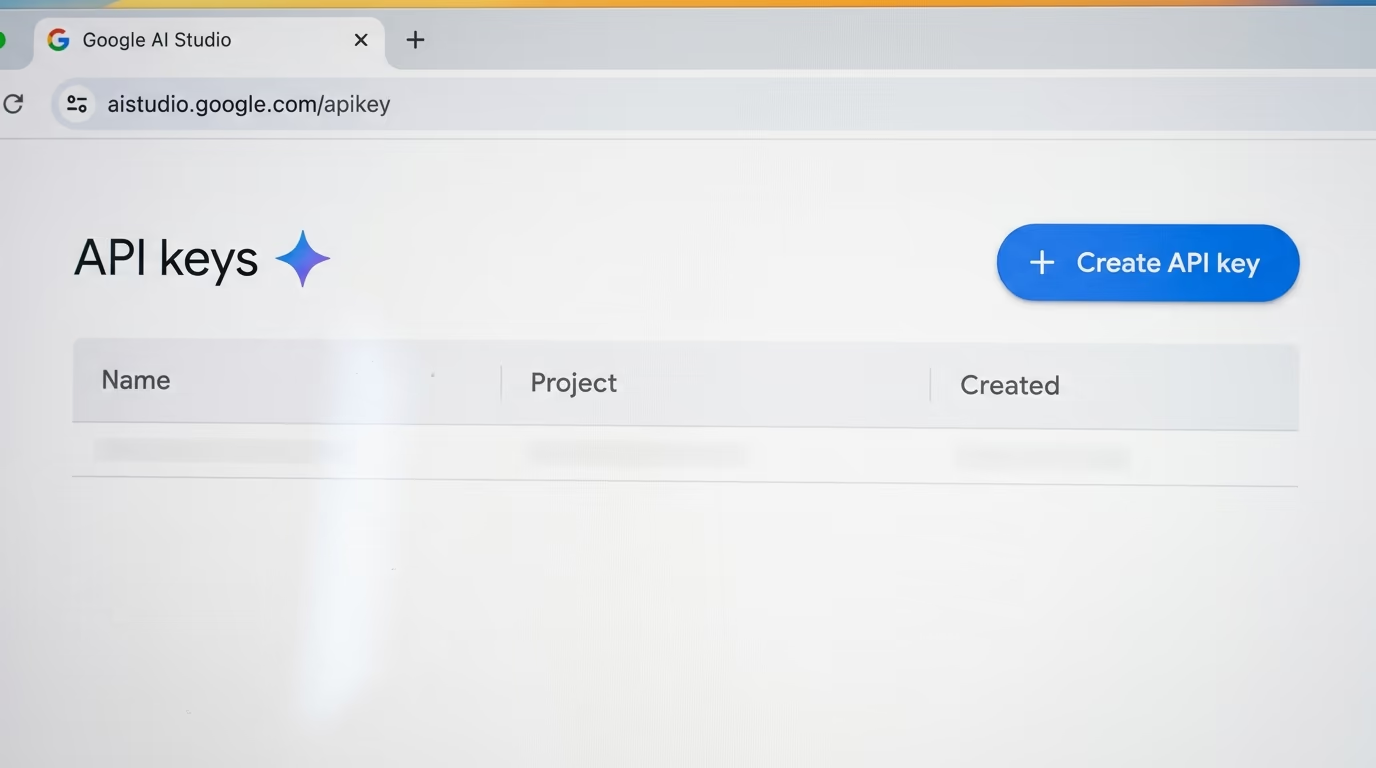
What you get back is a long string of letters and numbers, and it is the only thing standing between your account and somebody else spending on it. Copy it into a plain note for now, never into a public repository, a screenshot or a chat message. If you ever suspect it leaked, the same page deletes it and issues a replacement in seconds, which is a much better evening than the alternative.
Step 3 takes 5 minutes and it is the one people skip and then regret. Before writing anything of your own, prove the string works on a page Google did not build, so any later failure belongs to your code rather than your account. Simon Willison, a developer who publishes running notes on each new model as it lands, built a browser tool for exactly this, and describes it in one line.
Talk to Gemini 3.8 Live and Gemini 3.8 Live Extended Thinking with live audio conversations. Simon Willison, 15 September 2026
Open his Gemini Live audio tool, paste your string into the field it asks for, choose the standard model, and talk. If it answers, your account is configured and you can build on it. If it refuses, read the message it gives you, then check the string for a stray space at the end before you suspect anything cleverer.
How do you build your own Gemini Live page with one prompt?
You build your own Gemini Live page by pasting one long prompt into a coding agent and letting it write the file, and step 4 takes about half an hour including the fixing. You never open a code editor, you never read a WebSocket example, and the only 2 things you type yourself are an install line and the single command that starts the agent.
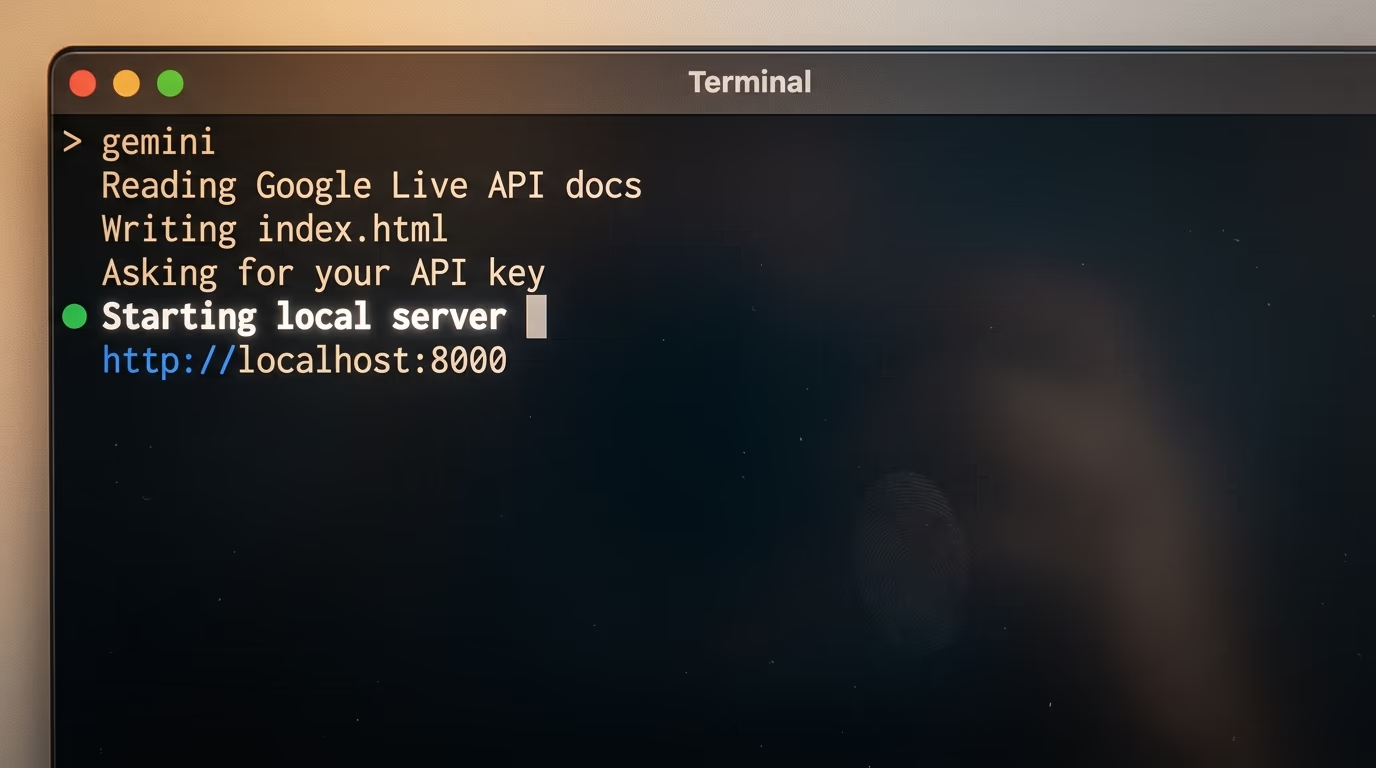
Any coding agent that can create and run files will do this job, and the ones we ranked for coding all qualify. The free one from Google is called Gemini CLI, it asks for Node.js version 20 or newer, and it installs with a single line typed into the Terminal app on a Mac, or into Windows Terminal. If Node is not on your machine yet, take the installer from the Node.js download page and accept every default.
This line installs the agent, and it takes a minute or 2 to finish.
npm install -g @google/gemini-cliWhen it finishes you have a new command called gemini. Type it, press return, and it opens a browser window asking you to sign in with the same Google account you used a moment ago.
geminiNow paste the block below into it. It is written in plain English, numbered in the order the agent works through it, and every instruction in it comes from Google's own documentation rather than from memory. Read it once before you paste, because line 4 decides how your credentials are handled, line 5 decides whether the model can hear you at all, and the timer instruction near the end is what saves you from a conversation dying with no explanation.
You are building a small web page that lets me hold a live voice conversation with Google's Gemini Live API. I have never written JavaScript. Work through these steps in order, show me what you are doing, and stop to ask me whenever you need something from me.

1. Make a new folder called gemini-live-page and work only inside it. Create one file, index.html, with no build step, no framework and no server code, so that I can open the file and read it myself.

2. Before writing any code, read Google's current documentation at https://ai.google.dev/gemini-api/docs/live and at https://ai.google.dev/gemini-api/docs/live-api/get-started-sdk and follow what those pages say today, not what you remember about them.

3. Load the official Google GenAI JavaScript library in the page from a CDN, use the model id gemini-3.8-live, and open a live session with the response modality set to AUDIO.

4. Ask me for my Gemini API key when the page first opens, using a simple text field on the page itself. Save it in the browser local storage so I do not retype it every time. Never write my key into index.html and never print it to the console.

5. Capture my microphone and send it in the format Google's documentation requires for the Live API, which is raw 16 bit PCM audio at 16 kHz in little endian order. Resample it yourself if the browser hands you anything else.

6. Play the audio the model sends back through my speakers as it arrives, and show a clear indicator of who is speaking right now, me or the model.

7. Show the conversation as text on the page. The native audio models reply with sound only, so switch on output audio transcription for both sides and write each line into a scrolling transcript I can read and copy.

8. Give me 3 buttons and nothing more, Start, Stop and Clear. Stop must end the session cleanly, and Clear must empty the transcript without ending the session.

9. Google limits an audio only session to 15 minutes and a single connection to around 10 minutes. Put a running timer on the page, warn me in plain words one minute before the connection is due to end, and when Google sends its GoAway message, show me the remaining time it reports instead of failing silently.

10. When the file is written, start a simple local web server in that folder, tell me the address to open, and walk me through my first conversation. If anything fails, read the browser console yourself, fix it, and tell me in one plain sentence what was wrong.
What you should see when the agent finishes is a folder holding one file called index.html, a line in your terminal giving an address that begins with localhost, and a page with an empty transcript, 3 buttons and a field waiting for your credentials. Paste them in, press Start, allow the microphone again for this new address, and say something out loud. The transcript fills from both sides and the voice answers.
The genuinely tedious step is the audio format, and it is worth knowing that before you start rather than at midnight. Browsers hand over microphone sound in whatever shape they feel like, the Live API wants one specific shape, and the agent usually needs 2 or 3 attempts before the model stops hearing noise. Let it run those attempts and answer its questions as they come.
What breaks first, and how do you recognize each wall?
The 5 things that break, in the order most people meet them, are the microphone permission, the audio format, the missing transcript, the session ending on its own, and the credentials sitting in a page anyone can read. None of them is a mistake in your work, all of them are documented, and each has a signature you can learn to spot in seconds instead of losing an evening to it.
The audio format costs the most time. Google's documentation asks for raw audio at one specific rate and shape, and a browser will hand over something else without complaining. The signature is a session that opens, reports itself connected, then sits in silence while you talk, because the model is receiving something it cannot read. The fix is not yours to write, which is why the prompt above names the format instead of leaving the agent to remember it.
The missing transcript surprises everyone who expects text for free. Google's live guide says the native audio models support the audio response only, and that a text version comes from switching on output audio transcription, so a page that plays a voice and shows an empty box is not broken, it is unconfigured. Ask the agent for transcription on both sides and the words appear.
The session ending on its own is documented and it is not your fault. Google's session management page says that without compression an audio only session is limited to 15 minutes, while a session carrying video stops at 2 minutes, and a single connection lives for around 10 minutes. Before it closes, the server sends a message Google calls GoAway carrying the time left, and a page that reads it turns a mystery into a warning. Longer conversations need context compression and session resumption, both real features on the same page.
The credentials sitting in your page are the wall that matters the day you put this online. A page anybody can open is a page whose source anybody can read, so a string typed into it is a string you have handed out. Google's own advice for production is to use ephemeral tokens instead of standard API keys, short lived credentials that work only with the Live API, and its documentation says they expire quickly and can be restricted, which reduces the risk. Keep tonight's page on your own machine.
If you would rather nothing left your machine at all, we built a voice loop that runs entirely offline in an AI voice agent that costs nothing to run. The trade there is the opposite one, more setup and a longer pause before it speaks, in exchange for a conversation nobody else can hear.
What does a real conversation cost when the free tier ends?
Google prices a live conversation by the minute as well as by the token, and the published rates are $0.005 a minute for the audio you send and $0.018 a minute for the audio that comes back. A conversation of 10 minutes in which the model speaks for 4 of them therefore lands near 12 cents, computed from those 2 published rates rather than read off anybody's bill.
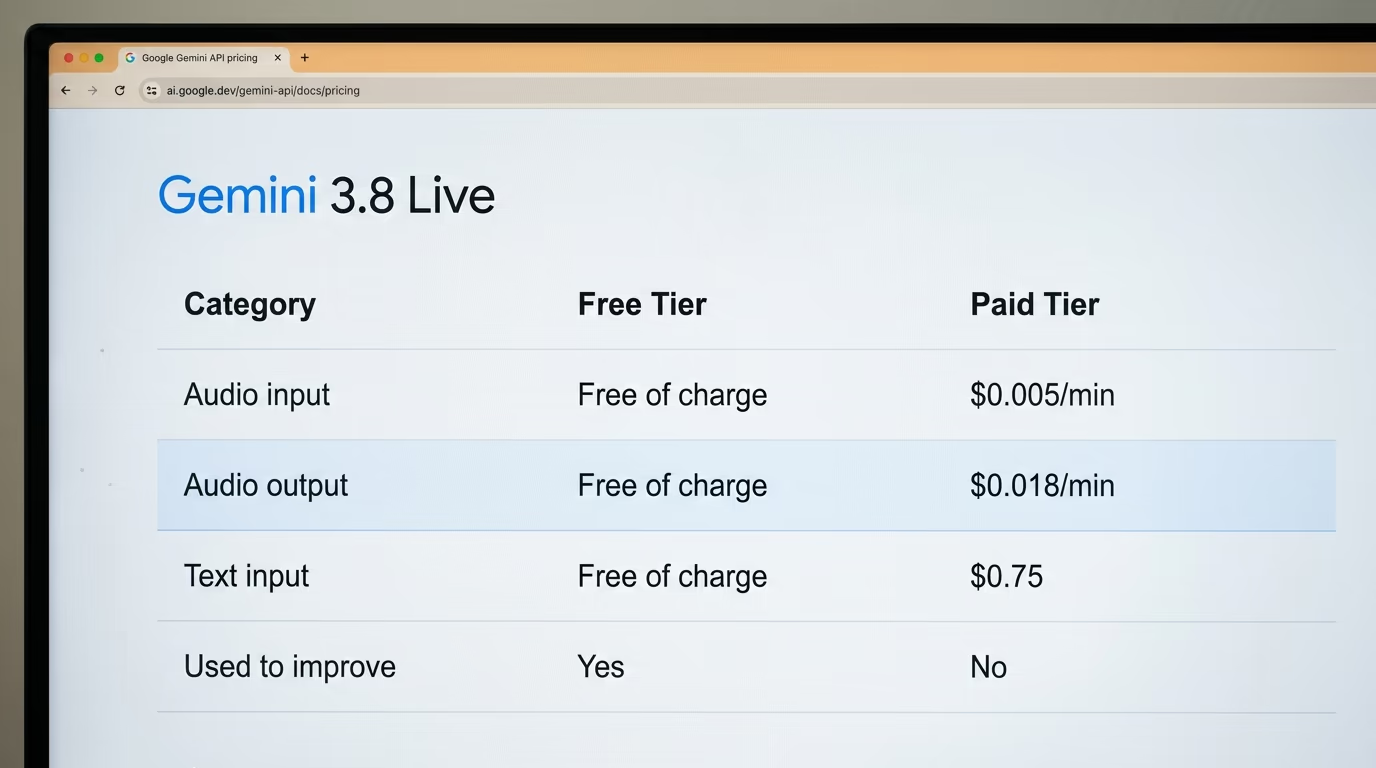
| What you stream | Free tier | Paid tier |
|---|---|---|
| Your voice going in | Free of charge | $3.00 per million tokens, or $0.005 a minute |
| The model's voice coming back | Free of charge | $12.00 per million tokens, or $0.018 a minute |
| Text you type in | Free of charge | $0.75 per million tokens |
| Text it writes back | Free of charge | $4.50 per million tokens |
| Camera or images going in | Free of charge | $1.00 per million tokens, or $0.002 a minute |
| Your conversation used to improve Google's products | Yes | No |
Read the last row of that table again, because it decides what you should do with the free tier. Free here is a trade rather than a gift, and Google says so in the same table rather than burying it elsewhere, which is more than most vendors manage. The sensible pattern is to learn on the free tier with conversations you would not mind a stranger reading, then turn on billing the moment you point it at real work.
The number that matters for a hobby project is simpler than the table makes it look. An hour of back and forth, at those 2 published rates, costs under a dollar, which is why people move off the consumer app once they want a voice assistant on their own terms. Against the rest of the market these are low rates, and we put the lineup side by side in our comparison of LLM API prices.
There is one cost the table does not show and nobody bills you for. Every minute the microphone is open is a minute of your room leaving the building, and a voice model is a far more intimate thing to leave running than a text box. Decide when it listens, rather than leaving a tab open all evening because it was free.
What we do not know yet about Gemini Live and Live Avatar
5 things are genuinely unknown today, and they are the ones to watch before you build anything that has to keep working next month. Google has published the model, the rates and the announcement, and it has not published the answers below, so anybody handing you those answers this week is guessing.
Live Avatar has no price and no date outside Gemini Enterprise. Google's announcement says it is available in Gemini Enterprise and stops there, with no consumer availability named, no rate for an avatar minute, and nothing about when or whether it reaches the ordinary Gemini API that this tutorial uses.
The language claim is Google measuring Google. The announcement says the avatar adapts its lip movement and its expressions and can move across 97 languages without the video quality dropping, and no independent test of that has been published anywhere we could find. Treat it as the vendor's own number until somebody outside the company runs it.
The free tier's real ceiling is not written in the documentation. Google's rate limit page sends you to Google AI Studio to look up your own limits rather than printing a figure for the live models, so nobody can tell you in advance how many minutes a day the free tier will actually give you. You find that out by using it and watching for the message.
Nobody has published how often a session survives to its stated limit. The documentation gives the caps, and how often a real connection over ordinary home internet reaches them is untested in public. Reading the documentation is not the same as measuring the behavior, and this piece does not claim to have measured it.
Whether the free tier reaches every country is not stated on the rows we read. Google describes it as being for developers and small projects getting started, without a country list on the live model's rows, so a reader outside the United States should expect to find their own answer when they create their first credentials.
The next evening's work is the one the avatar announcement quietly points at, which is giving the voice something to do beyond talking. The same live session accepts a camera at one frame a second and can call functions you write while it is speaking, which turns a conversation into an assistant that looks at what you hold up and acts on it. Get the browser page working tonight, and add the camera once the voice has stopped being interesting.
Questions people ask
Is the Gemini Live API free?
Yes on Google's free tier, where the pricing page marks both the input and the output for the live model as Free of charge. The same table adds that free tier content is used to improve Google's products while paid tier content is not, so the free conversation is a trade rather than a gift.
How do you use the Gemini Live API without writing code?
Open Google AI Studio's live page at aistudio.google.com/live, sign in with a Google account, press the microphone button and talk. Google's own Live API documentation links to that page as the place to try it, and it needs no setup, no install and no code at all.
What model does the Gemini Live API use?
Google's model list names one standard live model, presented as the default for voice agents that answer without a thinking delay, and that is the one Google's own sample code uses. There is also a version that reasons before replying, and a smaller preview model beside it.
Why does my Gemini Live session stop after a few minutes?
Google caps the length of a live session on purpose. Its session management documentation says an audio only session is limited to 15 minutes and a session carrying video to 2 minutes, with a single connection shorter again. The server sends a message named GoAway with the time remaining, and longer conversations need context compression and session resumption.
Can I put my Gemini API keys in a web page?
Not in a page other people can open, because anyone who can load the page can read the string out of its source. Keep your first page on your own machine, and if you ever host it, Google's documentation recommends ephemeral tokens instead, which are short lived credentials that work only with the Live API.
Does the Gemini Live API work with video?
Yes, at a maximum of one frame every second, so the model sees a slideshow of your camera rather than smooth motion. A session carrying video is also capped shorter than an audio only one, which is why most first builds leave the camera switched off.
What is Gemini 3.8 Live with Live Avatar, and can I use it today?
It is an animated face on top of the live voice model, announced by Google this week and available in Gemini Enterprise. Google published no consumer price and no date for anything outside Gemini Enterprise, so an individual developer cannot switch it on today, while the voice model underneath it is free to talk to in a browser right now.